
I am trying to generate an application password in my WordPress dashboard to connect claude desktop. However, when I go to my User Profile, the Application Passwords section is disabled.
There is a warning message that specifically says: “Application passwords have been disabled by Wordfence”. Directly below it, there is a button that says “Edit Wordfence Options”.
How do I safely enable application passwords so I can complete my integration?

Wordfence completely disables WordPress Application Passwords by default as a strict security precaution.
Because Application Passwords are used to authenticate external applications via the WordPress REST API without requiring Two-Factor Authentication (2FA), they are frequently targeted by automated botnets trying to bypass your login security. If an attacker guesses or steals an application password, they gain full access to your site.
However, if you legitimately need them for a trusted third-party app, automation tool (like Zapier or Make), or mobile application, you can safely re-enable them.
How to re-enable Application Passwords:
Click the Shortcut: Click the “Edit Wordfence Options” button directly under the warning message on your profile page. Alternatively, you can navigate to Wordfence > All Options in your left-hand WordPress admin menu.
Locate Brute Force Protection: Scroll down the page to the Brute Force Protection section.
Expand Additional Options: Look for the Additional Options sub-section and expand it.
Disable the Block: Find the checkbox labeled Disable WordPress application passwords and uncheck it.
Save Changes: Click the Save Changes button at the top right of the settings screen.
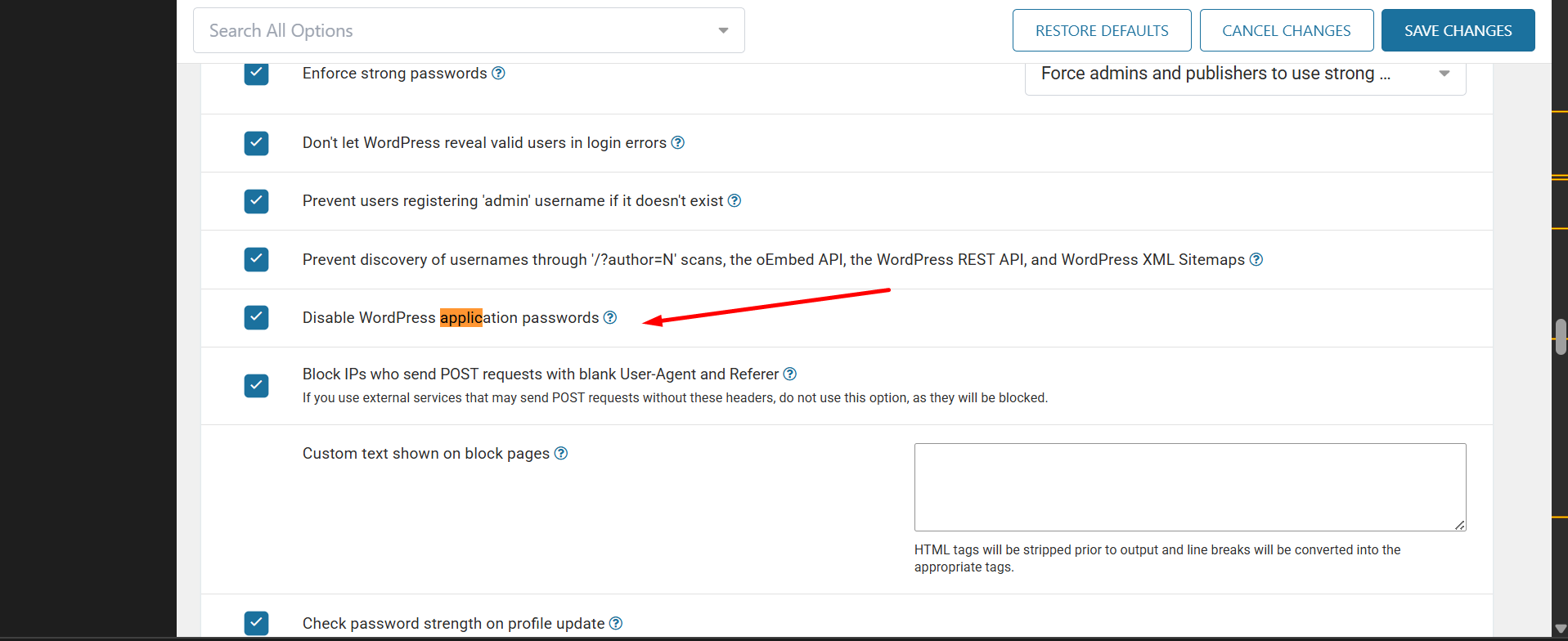
Once saved, return to Users > Profile. The block will be gone, and you will now be able to generate and name new Application Passwords.
Expert Security Tip: Treat these passwords like the keys to your front door. Only generate Application Passwords for trusted, highly secure applications. If you ever stop using the app or integration, immediately return to your user profile and Revoke that specific application password to close the entry point.